

Struggling to Keep Track of Document Versions?
Effective document management plays a critical role in keeping teams organised and productive. SharePoint as a trusted Microsoft platform for collaboration, offers built in tools that support reliable document version control. These tools allow teams to track updates, avoid confusion, and always access the most recent document version. By following proven best practice approaches, and with Insight IT’s guidance, organisations can confidently manage documents, reduce errors, and enable seamless collaboration across Microsoft 365.
Understanding Document Version Control
Document version control functions as a digital record of a document’s history. In a SharePoint document environment, each time a file is edited and saved, SharePoint saves the changes as part of the document history. This allows teams to collaborate without accidentally overwriting work or losing visibility of earlier changes.
With document version control in SharePoint, teams can:
- Access previous versions if an error occurs
- Compare a previous version to the current version
- Avoid conflicts when multiple users edit a document at the same time
- Maintain a clear audit trail to track and manage information
This built in versioning system in SharePoint supports accountability and accuracy across document libraries.
Keeping Track of Document Versions Without the Headaches
Keeping track of document versions should not feel stressful or risky, yet for many teams it quickly becomes a challenge. Files are edited, shared, renamed, and saved across multiple locations, and before long it becomes unclear which version is the correct one. This confusion can slow productivity and increase the risk of mistakes when working in shared environments.
Leveraging SharePoint’s Version History
SharePoint’s version history is one of the most valuable features of SharePoint. It allows users to view, compare, and restore versions from the item’s history throughout a document’s lifecycle.
View previous versions
Version history in SharePoint stores every saved file version, including timestamps, editors, and comments. Users simply navigate to a document library, right click the file, and select version history to view previous versions from the item’s list.
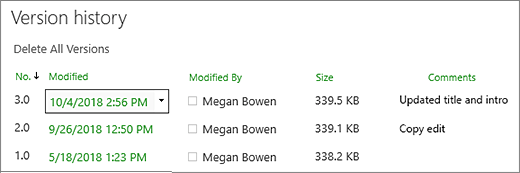
Highlight Differences Between Versions
For Microsoft Office files, users can compare an earlier version with the latest version to clearly see changes to a document. This is especially helpful when many updates have been made.
Restore a Previous Version
If required, users can restore an earlier version. When restored, it is saved as a new version, ensuring no data is lost and the document’s history remains complete.
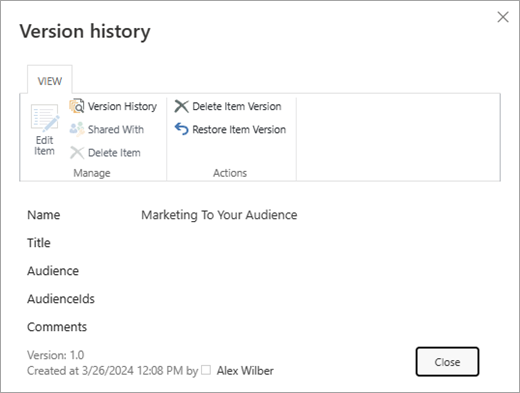
View Detailed Version Information
Each version includes details on who made changes and when. This supports compliance, auditing, and long term document management system requirements.
Mastering Check-Out and Check-In
Check out and check in tools help manage edits within SharePoint document libraries.
- Check out a document ensures only one person can edit a file
- Check in a document creates a new version of the document and allows access to others
This approach supports controlled editing and helps manage sensitive files.
Enabling Versioning and Disable Versioning in SharePoint
When versioning is enabled, SharePoint offers automatic tracking each time users save changes. This ensures versions are created consistently and accurately.
To enable versioning, site owners access library settings, open the version settings page, and configure versioning options. This allows organisations to control the number of versions, retention behaviour, and approval requirements.
In specific cases, such as temporary workspaces or storage constraints, teams may choose to disable versioning. However, doing so removes protection over file changes and should be carefully considered.
Major vs Minor Versions
Using major and minor versions helps teams distinguish between drafts and approved files.
A major version such as version 1 or 2.0 typically reflects an approved document. A minor version such as 1.1 represents drafts or in progress edits. This structure is essential when content approval is required and helps users understand which version of a document is ready for use.
Versioning with Autosave and Co Author
Versioning in SharePoint works seamlessly with Autosave and co author features in Microsoft 365. When multiple users can work on the same file, SharePoint saves updates automatically as users type and save.
Each time a user saves, a new version is created, capturing changes made by all co authors. This intelligent approach supports real time collaboration across SharePoint Online, OneDrive, and Microsoft Teams.
Organising with Metadata
Metadata improves organisation across document libraries. Each document that includes metadata becomes easier to locate and manage.
Examples include:
- Document type
- Author or department
- Keywords for search
Metadata combined with version history supports better document management without relying solely on folders.
Implementing a Robust Versioning Policy
A strong versioning policy ensures consistency across your SharePoint list or library.
A policy should include:
- Clear version numbering standards
- Retention rules and retention policies
- Approval workflows
This ensures teams understand how to manage document updates and maintain compliance.
Training Your Team for Success
Even the best configure settings require user understanding. Insight IT provides:
- Hands on training
- Education on best practices for managing documents
- Ongoing support for document management
With proper training, teams confidently use built in versioning and avoid common mistakes.
3 Additional Tips for Better Document Management
- Review SharePoint version history settings regularly
- Consider third party tools for advanced needs
- Align versioning with storage management requirements
End to End SharePoint Support You Can Rely On
At Insight IT, we specialise in setting up SharePoint for reliable document version control. We help businesses configure document libraries, enable intelligent versioning, and align workflows with business needs.
FAQs
Can Version Control be enabled for specific libraries only?
Yes. Version control can be enabled at the individual list or library level. Site owners access list settings or library settings to apply versioning only where required, leaving other areas unchanged.
How many Document Versions should we keep in SharePoint?
The ideal number of versions depends on compliance and storage needs. Limiting the number of versions helps balance access to version history with available storage space.
Does Version Control impact Storage Space?
Yes. Each saved version consumes storage space. Frequent edits and large files increase usage over time. Adjusting version settings helps control growth.
Is SharePoint Version Control suitable for remote or hybrid teams?
Absolutely. Using Microsoft 365, teams across locations can collaborate in real time. SharePoint version tracking ensures everyone works from the current version, with access to earlier version data when required.